Free & open source · Windows

Media playback the way it
should work on Windows.

mpv-synth is a modern Windows media player with frame interpolation, automatic HDR colour management, a filmstrip timeline, and one-click browser streaming.

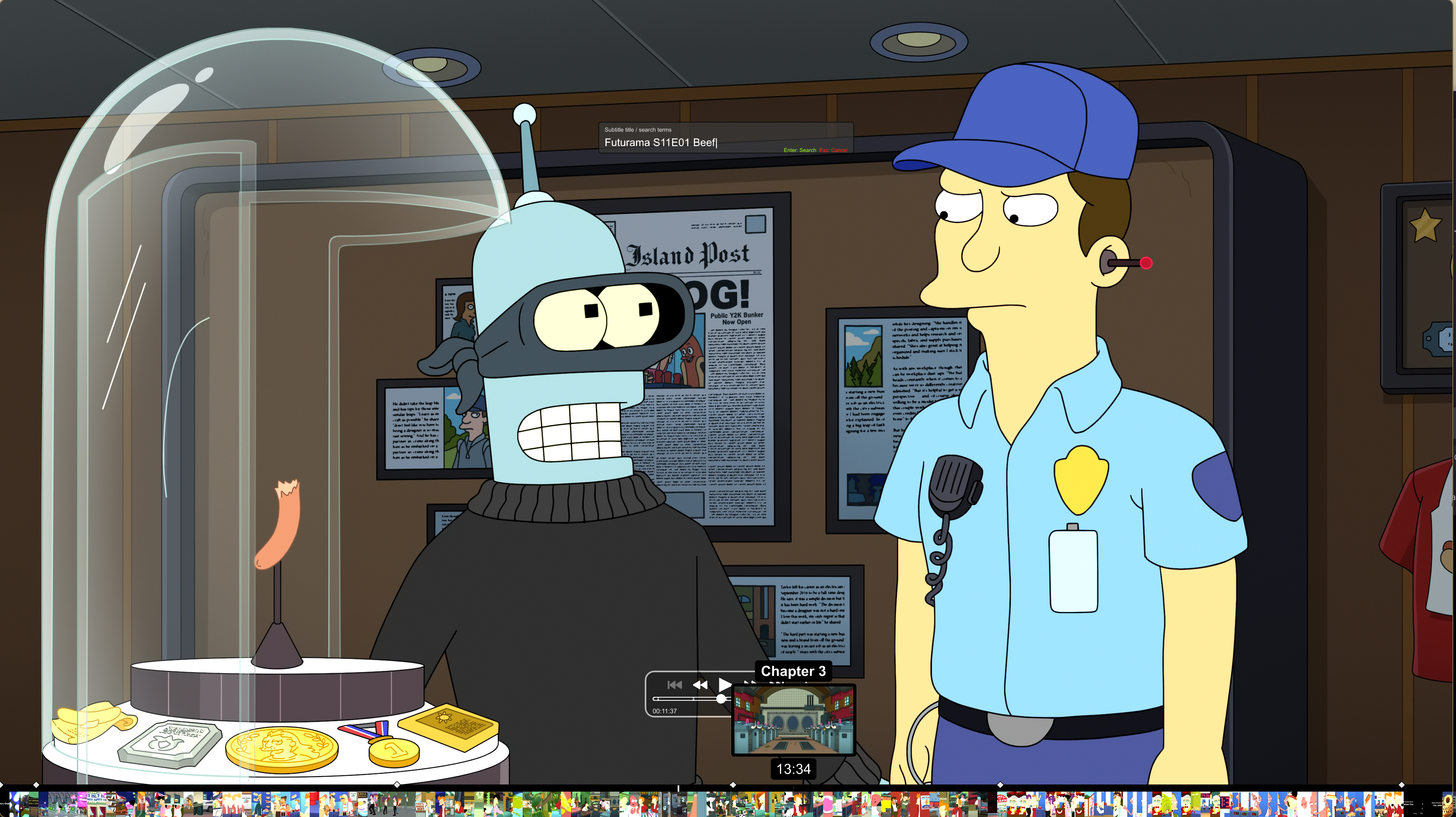
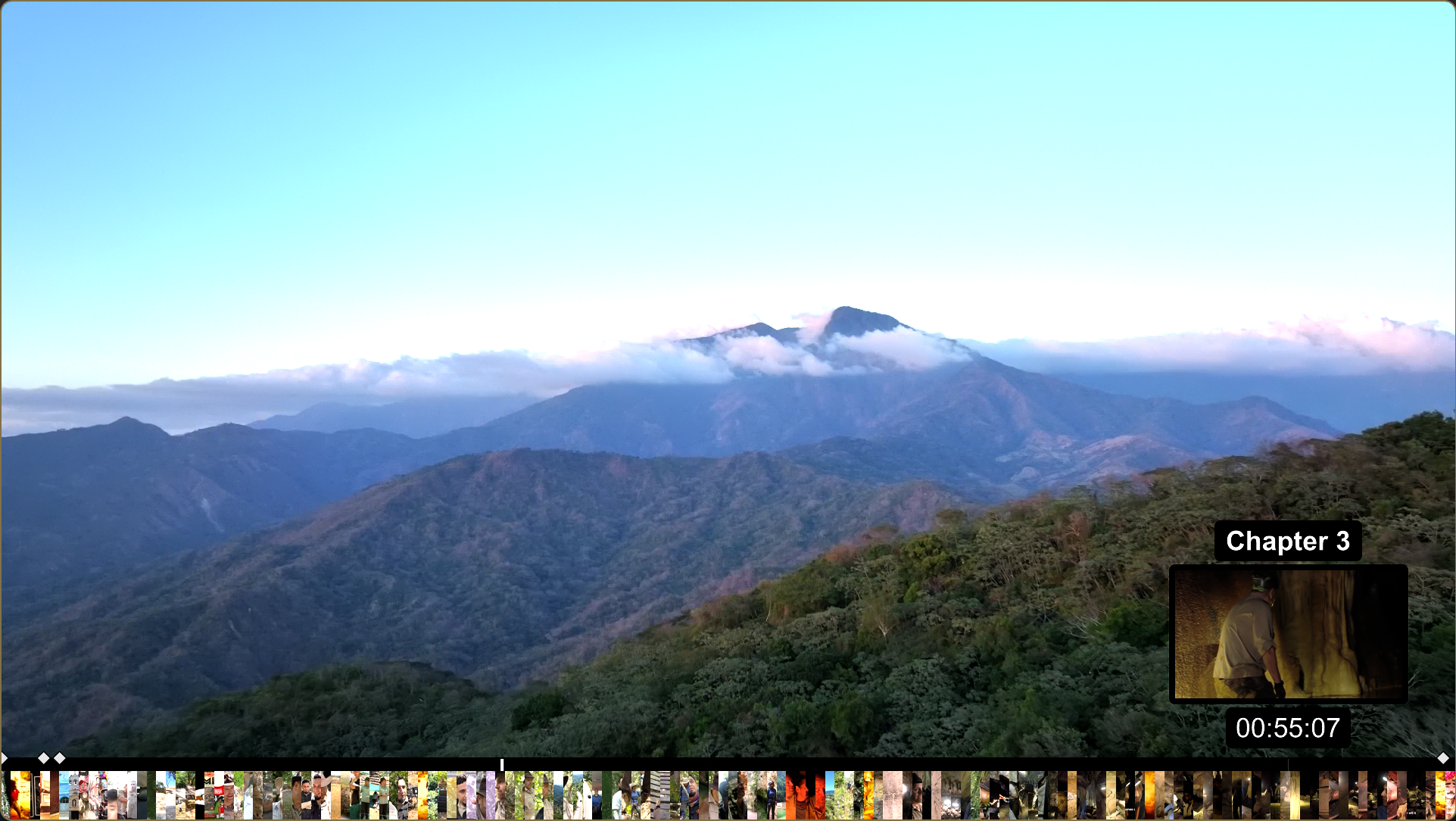
mpv-synth player with filmstrip timeline and hover thumbnail
The problem

Windows never got a great media player.

The third-party ecosystem hasn't kept pace with how people actually consume media. The most popular options are functional, but they feel like they were designed a decade ago — in most cases, they were.

What you get

Clunky interfaces assembled from stock Windows form components. Windows that linger on your desktop doing nothing after playback ends. No memory of where you were in a file.

What's missing

No awareness that you might want to move on to the next episode automatically. No consideration of the display you're watching on, the colour space of the content, or whether the motion could benefit from interpolation.

Compare it to your phone

You open a file — it plays. When it's done, it's done. It remembers your position. It just gets out of the way. There's no application to wrangle. It feels like a feature of the operating system.

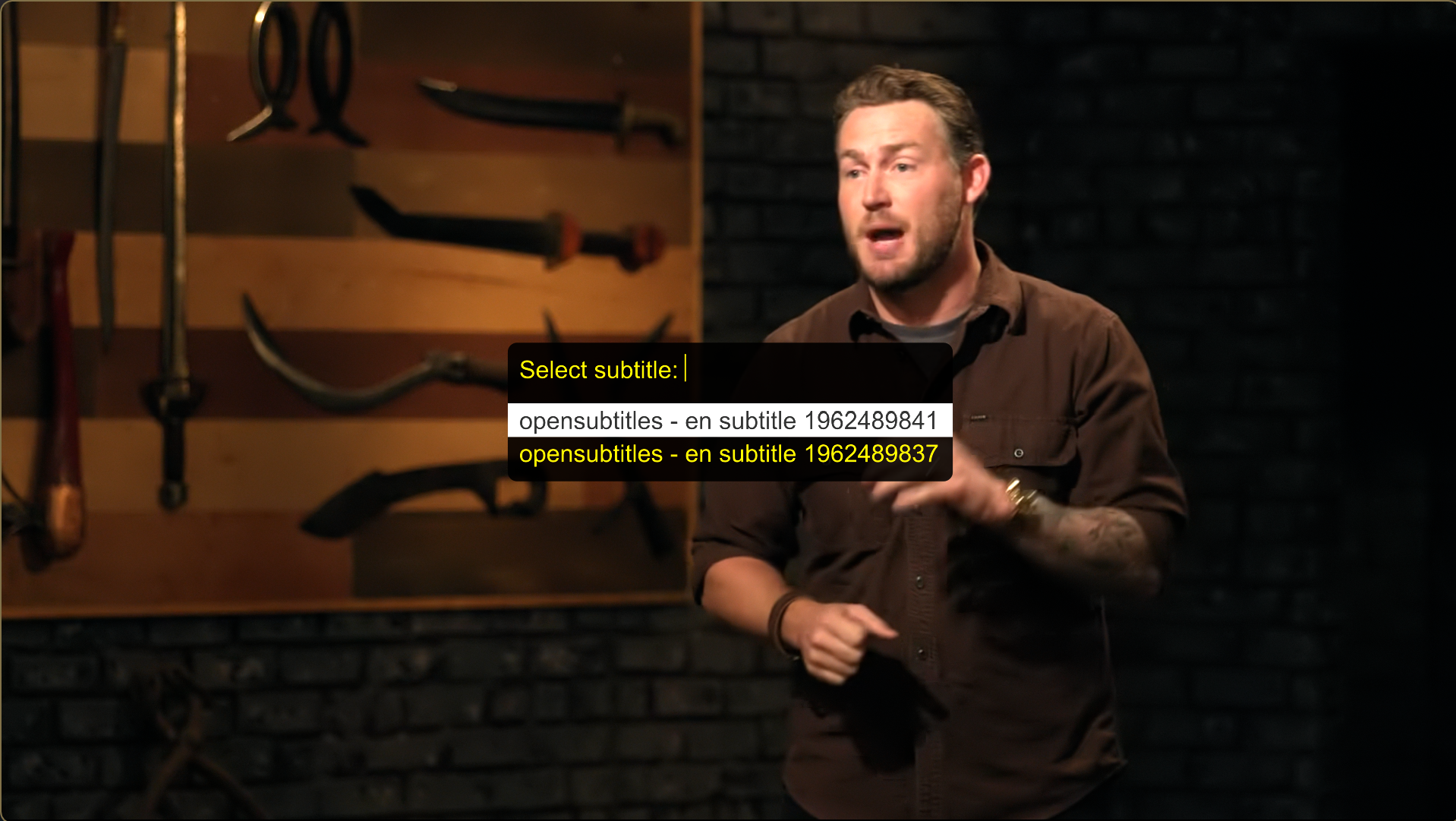
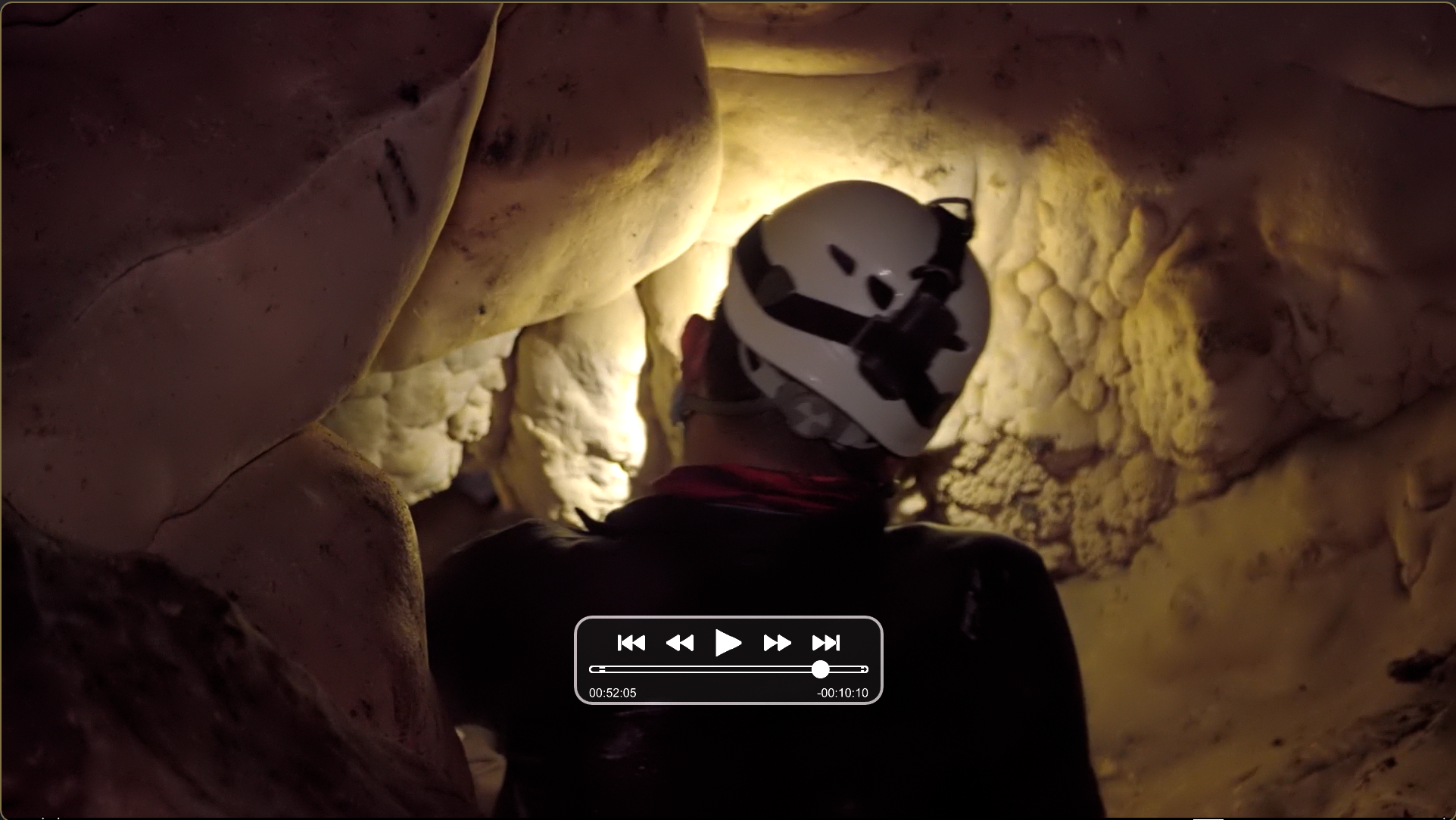
That's the experience mpv-synth is built to deliver on Windows. Open a video file and it plays, full stop. No splash screens, no library to build, no window hanging around after playback ends. When there are no more videos to watch in a folder, the player closes itself. It knows its job is done.

What's included

Everything you actually need.
Nothing you don't.

mpv-synth is built on mpv — one of the most capable media engines in existence — and wraps it in the experience layer that was always missing.

Frame Interpolation

Full VapourSynth pipeline powering buttery-smooth playback at 30, 60, 90, 120, or 144fps. Switch presets from the right-click menu or a keypress. Entirely optional — the player is equally happy without it.

🎨

Automatic Colour Management

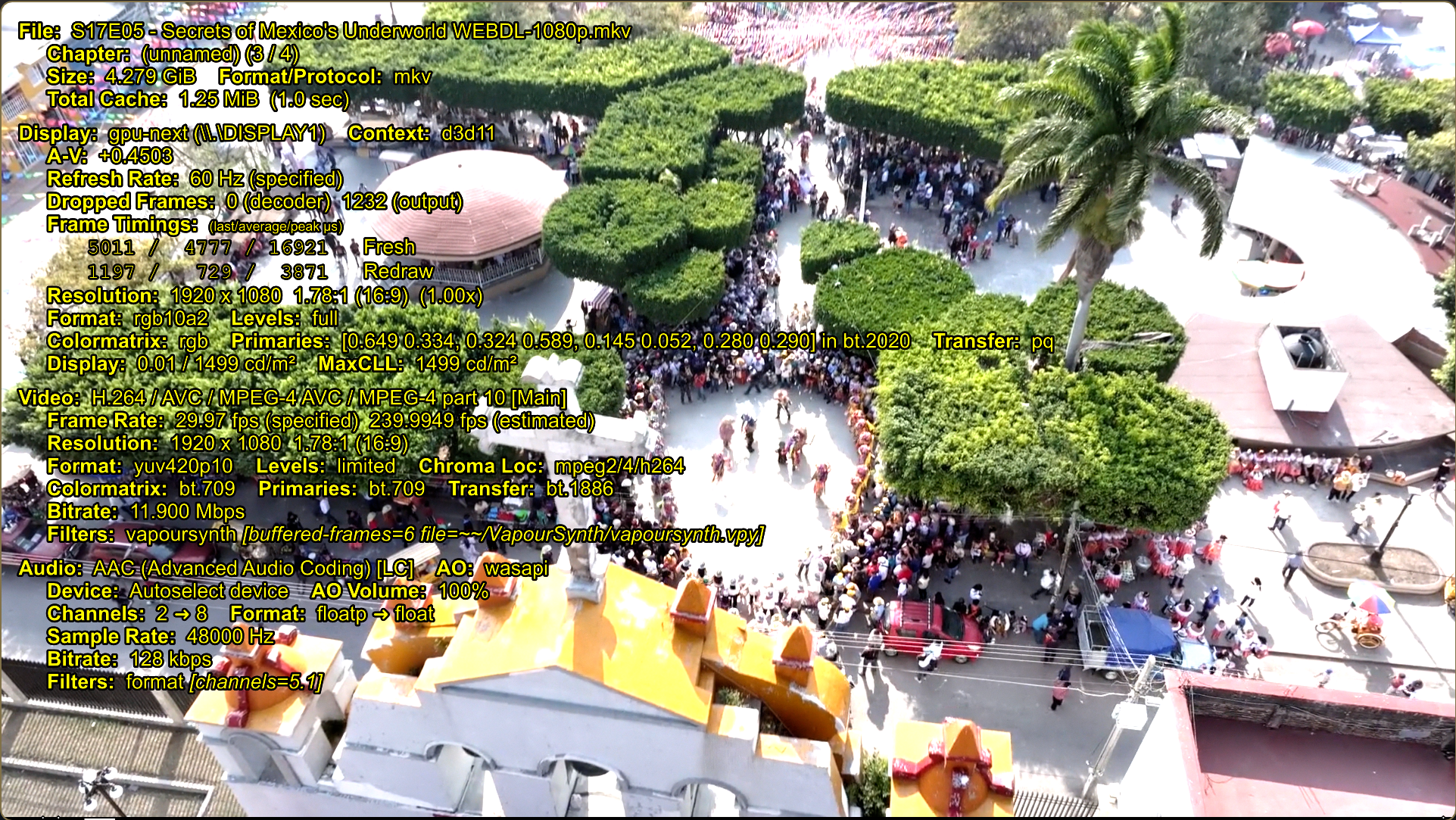
ICC-detect reads the colour space and HDR metadata of every file on load. HDR content is passed through natively on capable displays and tone-mapped correctly on SDR — automatically, every time.

🎞

Filmstrip Timeline

150 evenly-spaced thumbnail slices composited into the seekbar, giving you an at-a-glance map of the entire file. Hover for a frame-accurate preview. Jump to any scene with a click.

📺

Auto-advance & Resume

When a video ends, mpv-synth moves to the next file in the folder automatically. When you quit mid-file, it resumes exactly where you stopped — no manual bookmarking required.

🌐

Browser Streaming

Chrome and Firefox extensions add "Play in mpv-synth" to your browser's right-click menu. One click routes any web video through the player, bypassing browser-based playback entirely.

🔄

Self-updating

Press U from within the player to pull the latest versions of mpv, ffmpeg, and yt-dlp. The entire toolchain stays current with a single keypress.

In the wild

See it in action.

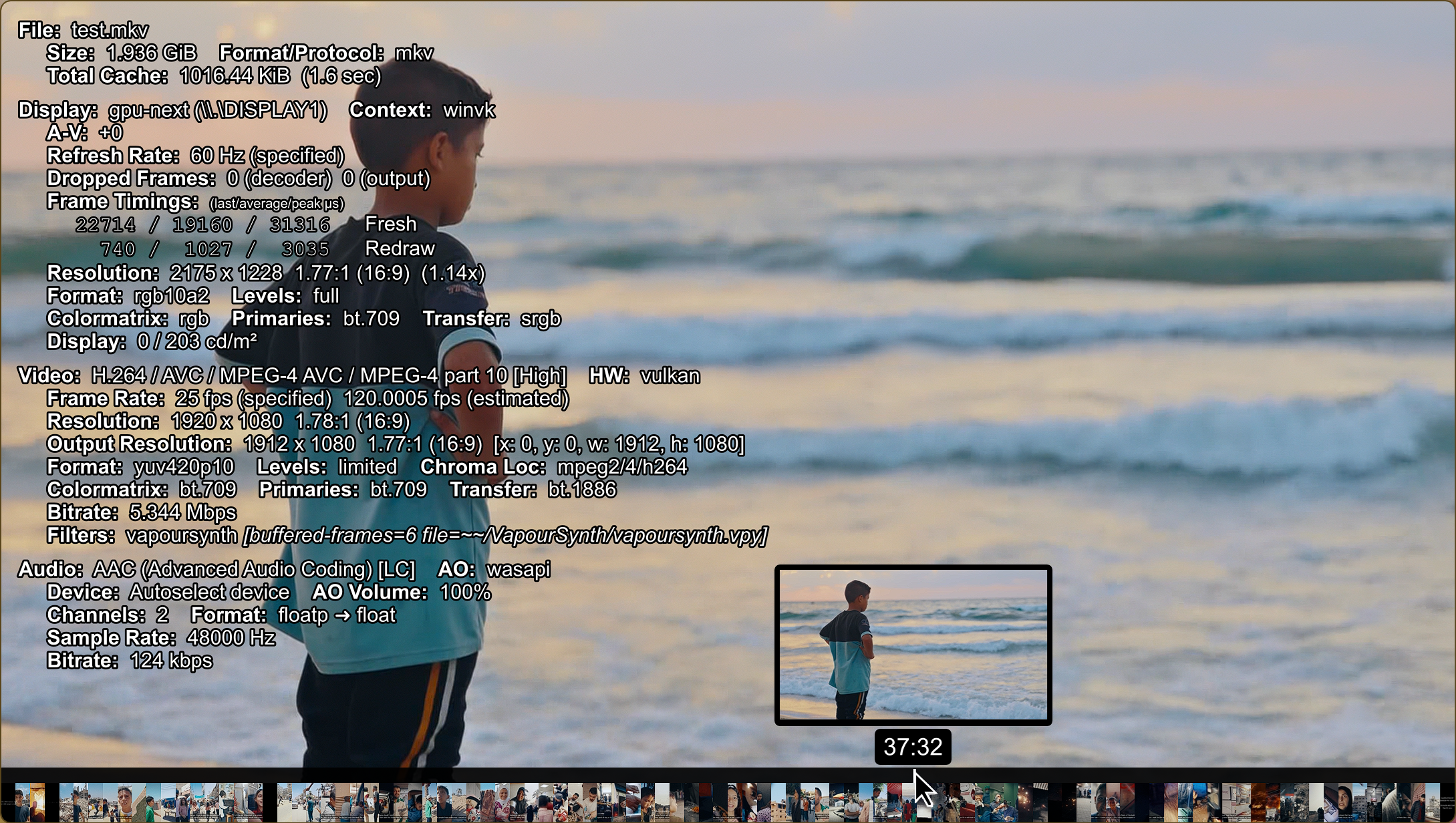
mpv-synth playing a local video file with filmstrip timeline
Local playback — filmstrip timeline, hover thumbnail, VapourSynth active at 120fps
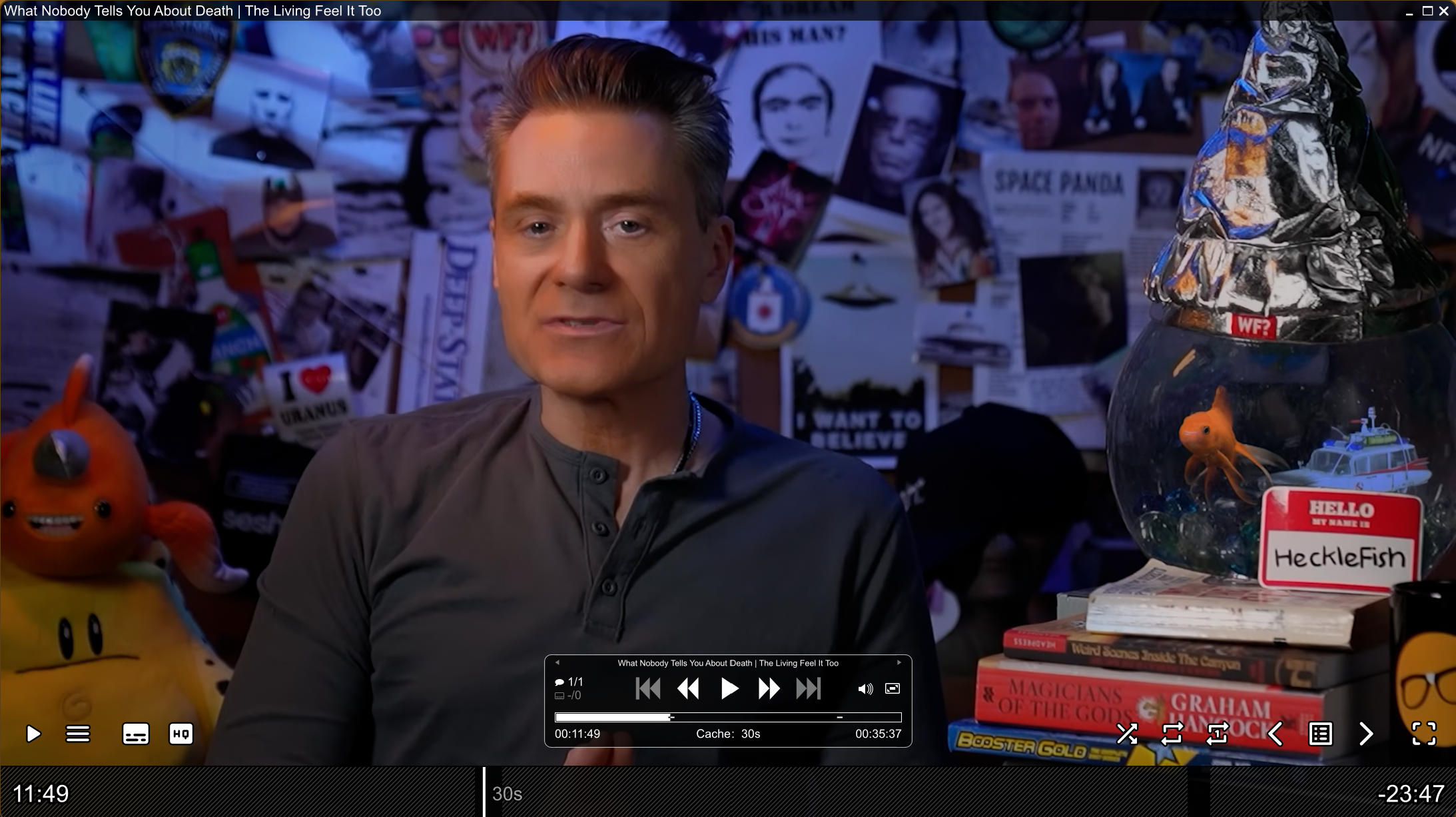
mpv-synth streaming a YouTube video via the browser extension
Web streaming — browser extension routing a YouTube video through the player
Installation

Up and running in minutes.

The installer handles all dependencies — mpv, ffmpeg, VapourSynth, and the interpolation libraries — automatically.

1

Download and extract

Download the zip and extract it where you want the installation to live. C:\Program Files\mpv-synth is the recommended location.

Download mpv-synth.zip

2

Run INSTALL.BAT

This single script downloads the latest versions of mpv, ffmpeg, ffprobe, yt-dlp, and VapourSynth; registers file associations; creates Start Menu and AutoPlay entries; then removes itself.

The install is interactive — read the prompts as they appear. Defaults are set to the recommended choices throughout, with one exception: if your machine is more than roughly a decade old, choose x86_64 at the first prompt rather than the default x86_64-v3. Any modern hardware should handle v3 fine.

3

Double-click a video

mpv-synth registers itself as the default handler for common video formats. If Windows asks which app to use, select mpv-synth and tick "Always". That's it — everything else is handled automatically from this point forward.

Performance tip: mpv is extremely lightweight at its core. If playback is stuttering, open portable_config\mpv.conf and look at the PERFORMANCE PROFILE section. Setting vo=gpu and gpu-context=d3d11 will make the biggest immediate difference. Any machine capable of running Windows 11 should handle mpv-synth smoothly.

The browser extensions are completely optional — mpv-synth works perfectly as a local player without them. They add a "Play in mpv-synth" right-click option to any page with embedded video in Chrome-family browsers and Firefox.

1

Install the native messaging host

Extract installer\mpv-synth-extension.zip in place. Then, inside the native\ folder, right-click install.bat and choose "Run as Administrator". This registers the Python host that allows the browser to securely launch mpv. You only need to do this once.

Prerequisite: Python 3 must be installed and on your PATH. Download from python.org — make sure to check "Add Python to PATH" during installation.
2

Load the extension in your browser

Chrome / Edge / Brave / Vivaldi: Go to chrome://extensions, enable Developer Mode, click "Load unpacked", and select the chrome\ folder.

Firefox: Go to about:debugging#/runtime/this-firefox, click "Load Temporary Add-on…", navigate to the firefox\ folder, and select manifest.json. For a permanent install, see the README inside the extension zip.

3

Configure paths

Click the mpv-synth icon in your toolbar. Fill in the mpv Location (the folder containing mpv.exe) and Config Location. If you installed to the default location, you can leave the pre-filled placeholders as-is. Click Save.

4

Select cache length

In the same config page for the extension you can adjust the slider to adjust the amount of video you'd like to have cached, the default 30 seconds is a good amount in almost any situation.

Note: Extensions are currently distributed for developer-mode installation rather than through browser extension stores. This sounds more technical than it is — the walkthrough above covers everything, and it takes under a minute. If demand grows, formal store publication will follow.
Usage

Everything you need, where you'd expect it.

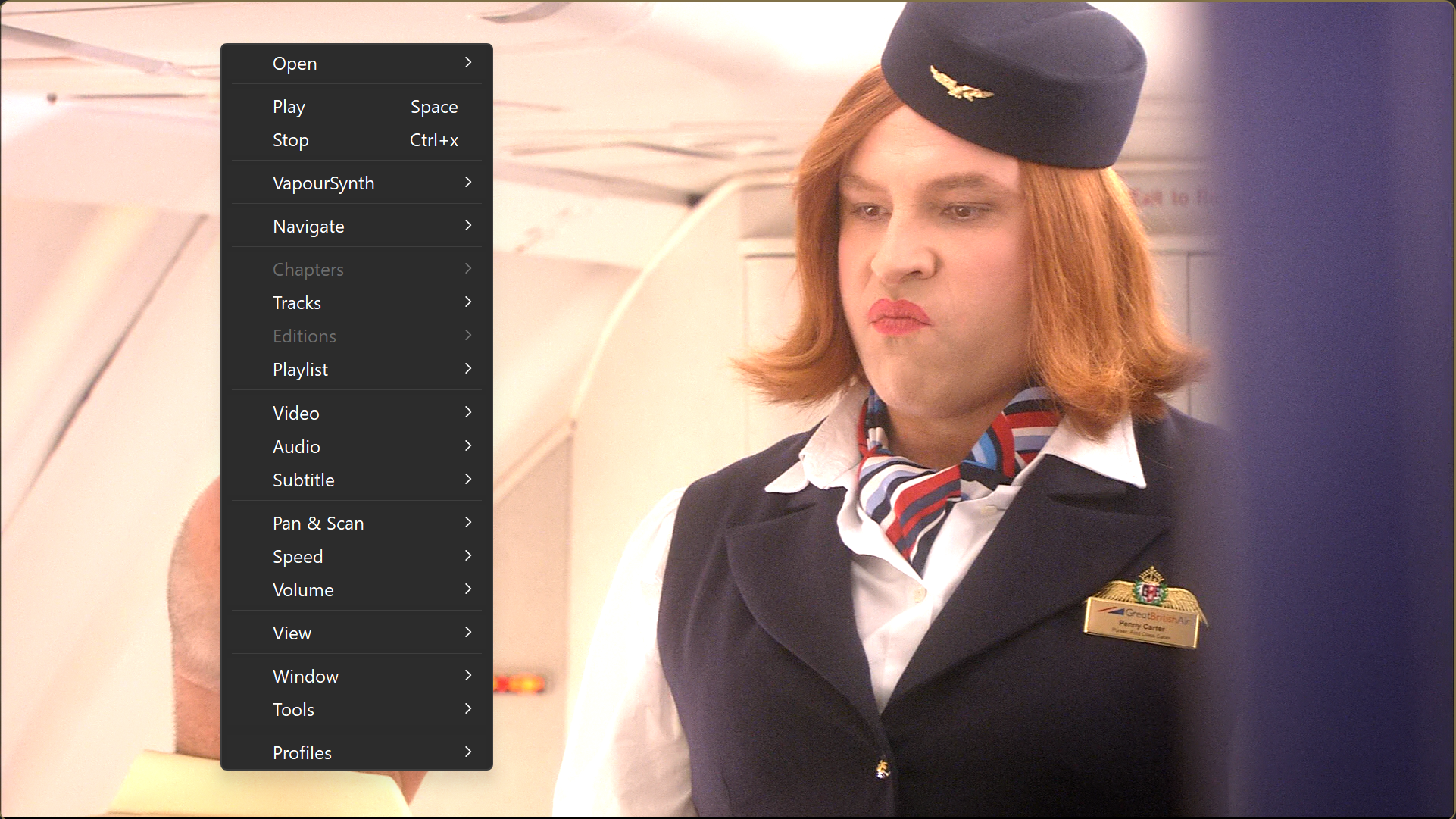
All actions are available in the right-click menu with keyboard shortcuts displayed alongside them. Here are the ones you'll reach for most often.

KeyAction
EscapeToggle fullscreen
SpacePlay / Pause
qQuit — position saved automatically
← →Seek 5 seconds; hold Ctrl for 5 minutes
↑ ↓Seek 30 seconds forward / back
a / dPrevious / next chapter
w / sStep one frame forward / back
, / .Previous / next file in folder
[ / ]Playback speed −10% / +10%
{ / }Playback speed ½× / 2×
BackspaceReset playback speed
- / =Volume down / up
vToggle subtitle visibility
Ctrl+vCycle subtitle tracks
IEdit keyboard bindings & menu
MEdit player configuration
UUpdate all components (mpv, ffmpeg, yt-dlp…)

All shortcuts and right-click menu entries are defined in portable_config\input.conf. Each line follows this pattern:

[key]    [action]    #menu: Top Level > Submenu > Item name

For example:

Right    seek 60    #menu: Navigate > Skip > 1 min forward
The #menu: portion is optional — omit it for a binding with no menu entry. Use _ as the key for a menu entry with no keyboard shortcut. Each > adds a submenu level. Open the file via Tools → Edit Config in the right-click menu, or press I.

All plugin options live in portable_config\script-opts\ — one .conf file per plugin, named accordingly. The main player options are in portable_config\mpv.conf.

The filmstrip defaults to 150 thumbnails generated across 4 concurrent threads. This gives a dense, visually rich timeline and runs smoothly on modest hardware — tested on a 65W Ryzen 7 mini-PC.

# portable_config\script-opts\filmstrip.conf
thumbnail_count=150
max_concurrent=4
If generation impacts playback, reduce max_concurrent to 2 or 1 — thumbnails will build more slowly, but playback won't be affected. thumbnail_count=100 still looks great. Set thumbnail_count=0 or enabled=no to disable the filmstrip entirely.
Standing on shoulders

Built on exceptional open source work.

Several bundled components are used in modified form — patched for reliability, this setup's specific quirks, or to resolve issues found during testing.

mpv

The player at the core of everything. Extraordinarily capable, extraordinarily extensible.

mpv-hero

The starting point and inspiration for this project.

VapourSynth

The frame processing framework powering interpolation.

uosc

The interface layer. The de facto standard for mpv UI.

mpv-menu-plugin

Native Windows right-click menu integration. Modified for this setup.

thumbfast

Timeline hover thumbnails. Modified — stall watchdog added for reliability.

open-file-dialog

Native Windows file/folder open dialog integration.

recent-menu

Recently played files list.

bjaan

Libraries for VapourSynth integration and interpolation.

If it's been useful, a coffee means a lot.

This started as a simple integration project and turned into months of debugging Lua timing races, writing plugins from scratch, and learning the internals of a rendering pipeline I didn't know existed. The software is free. If you've gotten anything out of it, I'd genuinely appreciate the gesture.